
For ChatGPT admins
You add BeigeCheck to your ChatGPT workspace once, and everyone you choose can use it.
On ChatGPT Business, Enterprise and Edu, members can’t add a connection like BeigeCheck themselves. An admin or owner adds it, publishes it for the workspace, and each person then connects it once. It takes about ten minutes.
Your ChatGPT admin
Adds BeigeCheck for the workspace
Admin console, Plugins, Create MCP plugin
Your ChatGPT admin
Chooses who gets it
Installation policy and availability
Each person
Connects it once
Settings, then Plugins
Each person
“@BeigeCheck check this article before I send it”
Before you start
The screens in this guide are from ChatGPT in October 2026. OpenAI moves things now and then; the steps say where to look if a screen differs.
- You need to be an admin or owner of the ChatGPT workspace. On Enterprise and Edu, an admin can also give chosen members the Create plugins with MCPs permission, but only admins and owners can publish.
- Use ChatGPT on the web. The mobile apps can’t add custom connections.
- Your company needs a BeigeCheck workspace, and each person needs to be on its team. Your BeigeCheck owner invites them from Team; there’s no charge per person.
Add it for the workspace
- Open the OpenAI Admin console, choose your ChatGPT workspace, open Plugins, then the tab with your workspace’s name.
- Choose Add, then Create MCP plugin.
- Fill in the details below. For the icon, upload BeigeCheck’s icon, so people see it in ChatGPT instead of a default one.
- Tick I understand and want to continue. ChatGPT shows that warning for every custom connection; all of BeigeCheck’s tools only read.
- Choose Create and sign in to BeigeCheck in the window that opens. BeigeCheck then shows on your workspace’s tab, with its tools listed, from the voice brief to the draft check.



If ChatGPT says “Could not complete this request” after Create, with “Plugin creation may have completed”, check your workspace’s tab first. If BeigeCheck isn’t there, and you’ve added BeigeCheck to your own ChatGPT before, that personal copy can get in the way: remove it under Plugins, Personal, then try again. If it still fails, write to us and we’ll work through it with you.
Adding it from ChatGPT’s own Plugins page (Add, then Add custom MCP server) makes a copy for you alone, not for the workspace.
- Name
BeigeCheck- Description
Our company’s approved facts and brand voice, and a check of each draft for unsupported claims and writing that sounds machine-made. Read only.- Connection
https://mcp.beigecheck.com/mcp- Authentication
OAuth
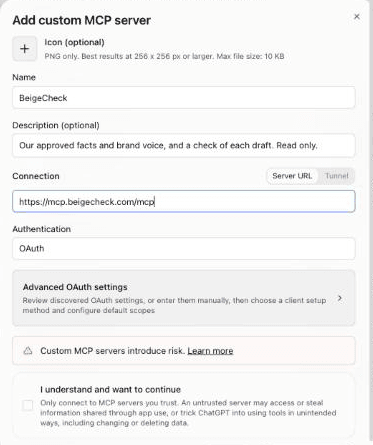
BeigeCheck tells ChatGPT where to sign in, so there are no client IDs to copy, and the Advanced OAuth settings can stay as they are.
Choose who gets it
In the Admin console, under Plugins, BeigeCheck’s row on your workspace’s tab has two settings. Choose Edit to change them.
- Installation policy: Available lets each person install it themselves; Installed for workspace adds it for everyone.
- Availability: Enabled, or Disabled to pause it.
On Enterprise and Edu you can also choose Customize by role, or in Workspace settings open Permissions & roles, then Custom roles, choose a role, and under Plugins & connected data select BeigeCheck. On Business, it’s for the whole workspace.
So people aren’t asked every time: open BeigeCheck’s Permissions in the Admin console and choose Allow read actions. All three of its tools only read, so ChatGPT won’t stop to ask before each check.
Then tick “BeigeCheck has been added” for ChatGPT under AI tools on the Team page in BeigeCheck, so invites show people the connect steps instead of asking them to wait.
What each person does
- In ChatGPT on the web, open Settings, then Plugins, find BeigeCheck and choose Connect.
- Choose Continue to BeigeCheck and sign in with the email address their BeigeCheck invite went to.
- In a chat, type @BeigeCheck and say what they need. ChatGPT uses BeigeCheck for that message, so they name it again when they want a new check.
- “Use BeigeCheck to write a LinkedIn post about our new client in Leeds.”
- “Use BeigeCheck to check this article before I send it.”
- “Use BeigeCheck to draft a proposal for a mid-sized accountancy firm.”
- “Ask BeigeCheck what we’ve approved about our client results.”
- “Anything new from BeigeCheck?”
- “Has my draft been approved in BeigeCheck?”
Keep it up to date
ChatGPT keeps a snapshot of BeigeCheck’s tools from the day you added it. We change them rarely, but when we do, ChatGPT keeps using the old snapshot until an admin refreshes it, and checks can fail in the meantime. In the Admin console, under Plugins, open BeigeCheck and refresh its tools, then make sure all three are still allowed.
Remove or pause it
- One person: on Enterprise and Edu, take them out of the group or role that has it. On any plan, your BeigeCheck owner can remove them from Team in BeigeCheck, which ends their access in every AI tool straight away.
- Everyone: in the Admin console, open Plugins and disable BeigeCheck. You can turn it back on later.
Removing it from ChatGPT doesn’t delete your company’s BeigeCheck workspace or its knowledge. Your BeigeCheck owner manages those, and your subscription, in BeigeCheck.
If someone can’t use BeigeCheck
Check these in order.
- Is it on the workspace’s tab? In the Admin console, under Plugins, BeigeCheck should be on your workspace’s tab, Enabled. One added from ChatGPT’s own Plugins page is a personal copy that only you can use.
- Is it enabled for them? On Enterprise and Edu, check the groups under Configure Access, and the person’s custom role under Plugins & connected data. If ChatGPT says Disabled by admin, one of those is stopping it.
- Are they on the web? Custom connections work in ChatGPT on the web, not in the mobile apps.
- Have they connected it? Each person signs in to BeigeCheck once, from Settings, then Plugins. Until they do, ChatGPT can see BeigeCheck but can’t use it.
- Did they name it? Typing @BeigeCheck, or naming BeigeCheck in the request, is what makes ChatGPT use it for that message.
- Did it stop working after an update? Refresh its tools, as in the section above. ChatGPT doesn’t tell anyone when a snapshot is out of date.
- Do they have a BeigeCheck account? Their sign-in has to match a person on your company’s BeigeCheck team. If it doesn’t, the owner invites them from Team in BeigeCheck.
What BeigeCheck can see and do
ChatGPT gets six read-only tools: the company’s voice brief, its approved facts, a check of a draft, what’s changed since they last asked, where their drafts sent for sign-off stand, and their own voice. None of them can change anything in BeigeCheck or in your ChatGPT workspace. BeigeCheck sees the drafts ChatGPT sends it to check, and keeps their text only as long as your workspace’s setting allows. Security and data has where it’s stored and who processes it.
Using ChatGPT on your own, outside a company workspace? The steps on the Connect page add it to your own account, where your plan allows it. Questions? Write to hello@beigecheck.com.