
BeigeCheck connects to the AI tool you already use, in a few minutes.
Each person connects Claude themselves. On a company ChatGPT or Microsoft 365 account, your administrator adds BeigeCheck once, then each person connects it. You’ll need a BeigeCheck account first, which your company’s owner can invite you to.
Connect Claude
On Claude Team or Enterprise, an Owner adds BeigeCheck for the organisation first, using the guide for owners, and you connect it from Customize, then Connectors. On your own Free, Pro or Max plan:
You
Add BeigeCheck as a connector
Customize, then Connectors
You
Set its tools to Always allow
BeigeCheck, under Yours
You
“Use BeigeCheck to draft a proposal for…”
- In Claude, open Customize, then Connectors. Choose Add, then Add custom connector.
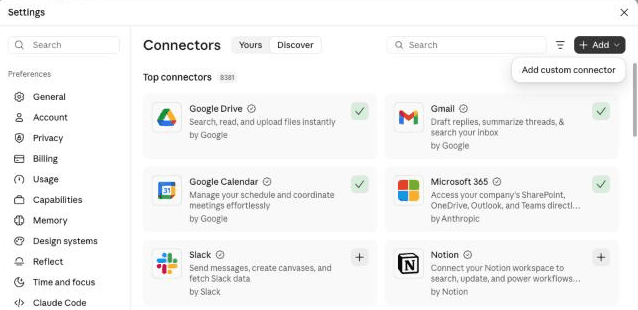
Customize, then Connectors, then Add, then Add custom connector. - Call it BeigeCheck and paste
https://mcp.beigecheck.com/mcpas the address. - Choose Continue and sign in to BeigeCheck.
- Open BeigeCheck under Yours, and set both groups of tools, Interactive tools and Read-only tools, to Always allow. Otherwise Claude asks for permission every time it uses BeigeCheck. All of its tools only read; the draft check counts as interactive because it shows the Beige-ometer panel.
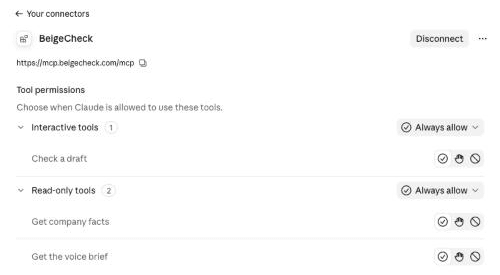
Both groups set to Always allow. - Start a prompt with “Use BeigeCheck to…”. Or add this to your profile preferences once:
When I write anything for my company, use BeigeCheck first.
Claude’s Free plan allows one custom connector, so BeigeCheck uses it.
Connect ChatGPT
On ChatGPT Business, Enterprise or Edu, your ChatGPT admin adds BeigeCheck for the workspace first, using the guide for admins. Then:
- In ChatGPT on the web, open Settings, then Plugins, and find BeigeCheck.
- Choose Connect, then Continue to BeigeCheck, and sign in to BeigeCheck.
- In a chat, type @BeigeCheck and say what you want written.
On your own account, where your plan allows custom connections: in Plugins, choose the plus button, then Add custom MCP server, call it BeigeCheck, paste https://mcp.beigecheck.com/mcp as the connection and choose OAuth.
Connect Microsoft 365 Copilot
Your Microsoft 365 administrator adds BeigeCheck once, for the whole company. Everyone with a Microsoft 365 Copilot licence can then use it.
- In the Microsoft 365 admin centre, open Copilot, then Connectors. Under Gallery, choose Create a new connector, then Connect to MCP server.
- Call it BeigeCheck and paste
https://mcp.beigecheck.com/mcpas the MCP server URL. Add Ghostart Ltd as the developer, with https://beigecheck.com, /privacy and /terms as the website, privacy and terms addresses. - Choose OAuth 2.0 and paste this as the Reference ID:
NjcxNzIwNWUtYzBmOC00YjVhLWI2ZDUtNTE3YTVjMmFmN2RhIyNjYTExZTM4Zi0wM2RiLTRlYjctYWJkNi0wOWE2OTgwYjlmYzU= - Choose Authorize, sign in to BeigeCheck, accept Microsoft’s notice and choose Create.
- Then install it for your people: open Agents, then Tools, choose BeigeCheck, choose Install, pick who gets it (everyone, or chosen people) and confirm. Until it’s installed, BeigeCheck is only available, and nobody sees it in Copilot.
- Each person then switches it on once: in Copilot, choose +, then Change data sources, find BeigeCheck, choose Connect, then Continue to BeigeCheck, and sign in. Microsoft’s box says Copilot can “read and write” content; BeigeCheck’s connection only reads.
- Then ask Copilot to use BeigeCheck when they write, with Work IQ switched on.
The administrator needs the Global Administrator or AI Administrator role. To give it to chosen groups, remove it, or work out why someone can’t see it, send them the guide for IT.
Once it’s connected, just ask.
Ask your AI tool to write as you normally would. It fetches your facts and voice from BeigeCheck first, and the Beige-ometer appears under the finished draft. To check something you’ve written, paste it in and ask for a BeigeCheck.
The connection only reads. Changes to your company’s facts and voice happen in BeigeCheck, where an approver signs them off. How we handle your data