
For IT
You add BeigeCheck to Copilot once, and choose who gets it.
BeigeCheck joins Microsoft 365 Copilot as a connector your organisation creates in the admin centre. It takes about ten minutes. Then you decide which people or groups can use it, and each of them connects it once in Copilot.
Your IT admin
Creates the BeigeCheck connector
Microsoft 365 admin centre
Your IT admin
Chooses who gets it
Staged rollout, by person or group
Each person
Connects it once
Copilot, + then Change data sources
Each person
“Use BeigeCheck to write a LinkedIn post about…”
Before you start
The screens in this guide are from the Microsoft 365 admin centre and Copilot in October 2026. Microsoft moves things now and then; the steps say where to look if a screen differs.
- You need the Global Administrator or AI Administrator role in the Microsoft 365 admin centre.
- Everyone who’ll use BeigeCheck needs a Microsoft 365 Copilot licence. Copilot Chat without the licence doesn’t use connectors.
- Your company needs a BeigeCheck workspace, and each person needs to be on its team. Your BeigeCheck owner invites them from Team; there’s no charge per person.
- Under Agents, then Settings, then Agent and plugin access, check that “Allow agents and plugins built by your organization” is ticked. BeigeCheck counts as built by your organisation, because you create its connector.
Create the connector
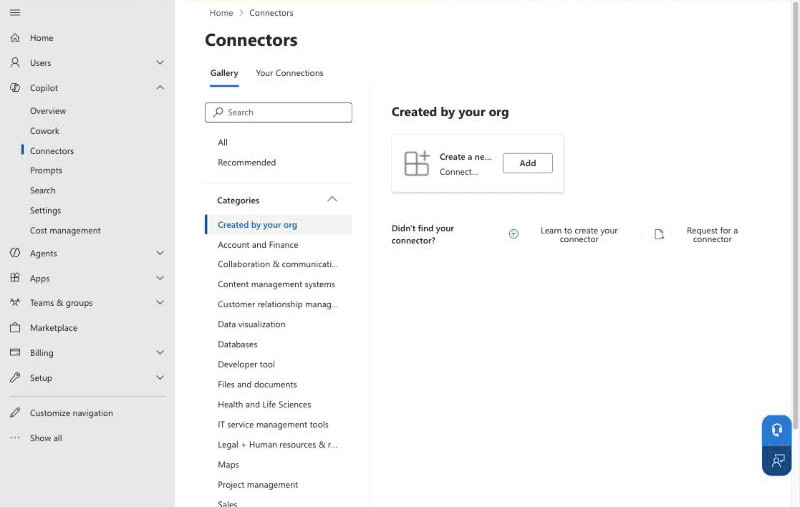
- Sign in to the Microsoft 365 admin centre at admin.microsoft.com and open Copilot, then Connectors.
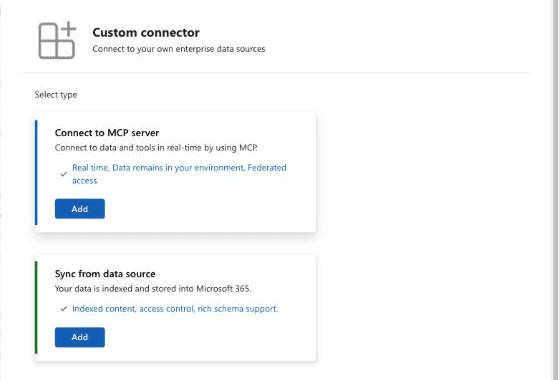
- On the Gallery tab, under Created by your org, choose Add on the Create a new connector tile. Then, under Connect to MCP server, choose Add.
- Fill in the form with the details below.
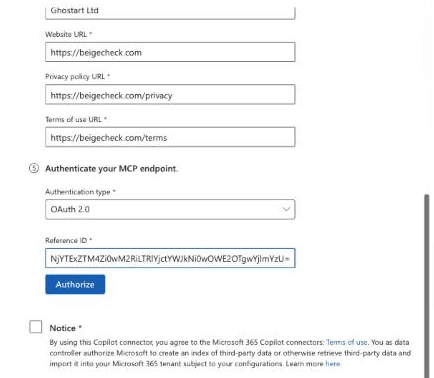
- Choose Authorize and sign in to BeigeCheck, tick Microsoft’s notice, then choose Create. BeigeCheck now shows under Your connections.
- Display name
BeigeCheck- Description
BeigeCheck gives Copilot our company’s approved facts and brand voice before it writes, and checks each draft for unsupported claims and writing that sounds machine-made. Read only.- MCP server URL
https://mcp.beigecheck.com/mcp- Developer
Ghostart Ltd- Website
https://beigecheck.com- Privacy policy
https://beigecheck.com/privacy- Terms of use
https://beigecheck.com/terms- Authentication
OAuth 2.0- Reference ID
NjcxNzIwNWUtYzBmOC00YjVhLWI2ZDUtNTE3YTVjMmFmN2RhIyNjYTExZTM4Zi0wM2RiLTRlYjctYWJkNi0wOWE2OTgwYjlmYzU=
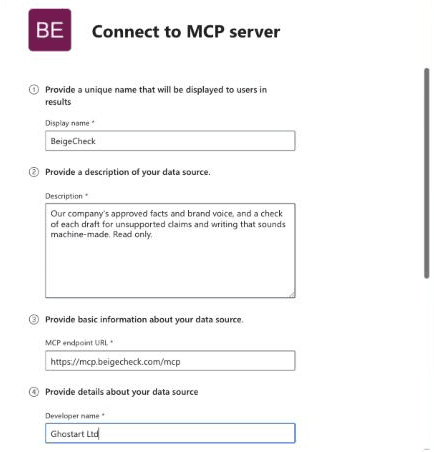
Microsoft’s form has no logo field, so BeigeCheck shows as the letters “BE” in your connector list. That’s expected; nothing is wrong.
The Reference ID is BeigeCheck’s sign-in registration with Microsoft, and it works in any Microsoft 365 organisation. It isn’t a secret. If Authorize fails, start a new connector instead of retrying in the same form: a failed attempt leaves the form holding a different ID.
Choose who gets it
Creating the connector makes BeigeCheck available in your organisation. Two settings decide who can actually use it, and a person has to be allowed by both.
- User access (Agents, then Settings, then User access) is the limit for every agent and connector in your organisation: all users, specific users or groups, or no users.
- Staged rollout is BeigeCheck’s own setting. In Copilot, Connectors, Your connections, choose BeigeCheck, then Change beside Staged rollout. Under Available to, choose All users, or Specific users/groups to add the people or Microsoft Entra groups who should have it.
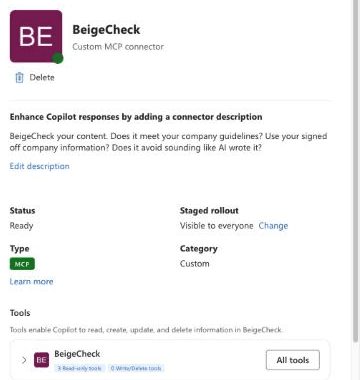
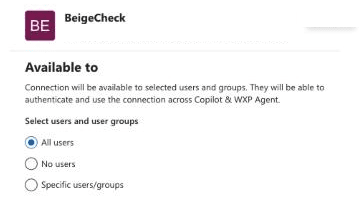
To give BeigeCheck to one team, such as Marketing and Sales, add their group to the staged rollout and make sure User access includes them too.
In our own tenant, BeigeCheck also needed installing before anyone saw it. If people in the rollout still can’t find it, open Agents, then Tools, choose BeigeCheck, choose Install, pick the same users or groups and confirm.
What each person does
- In Copilot, with Work IQ switched on, choose +, then Change data sources.
- Find BeigeCheck, choose Connect, then Continue to BeigeCheck, and sign in with the email address their BeigeCheck invite went to.
- Microsoft’s box says Copilot can read and write content from BeigeCheck. That’s Microsoft’s standard wording: BeigeCheck’s connection only reads.
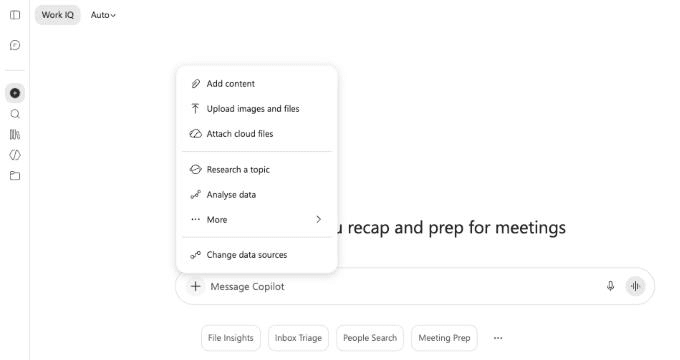
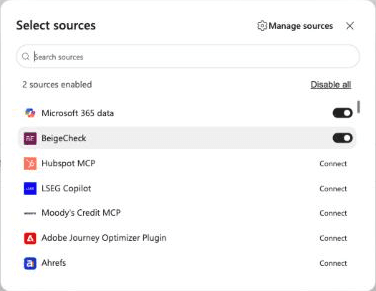
Then they ask Copilot as they normally would, naming BeigeCheck:
- “Use BeigeCheck to write a LinkedIn post about our new client in Leeds.”
- “Use BeigeCheck to check this article before I send it.”
- “Use BeigeCheck to draft a proposal for a mid-sized accountancy firm.”
- “Ask BeigeCheck what we’ve approved about our client results.”
- “Anything new from BeigeCheck?”
- “Has my draft been approved in BeigeCheck?”
Remove or pause it
- One person: take them out of the staged rollout or the group it uses. Your BeigeCheck owner can also remove them from Team in BeigeCheck, which ends their access in every AI tool straight away.
- Everyone, for now: disable BeigeCheck under Your connections, or block it under Agents, then Tools. Its settings are kept, so you can turn it back on. Setting the staged rollout to No users hides it without disabling it.
- For good: delete it under Your connections. This can’t be undone; to use BeigeCheck again you’d create the connector afresh.
Removing the connector doesn’t delete your company’s BeigeCheck workspace or its knowledge. Your BeigeCheck owner manages those, and your subscription, in BeigeCheck.
If someone can’t see BeigeCheck
Check these in order. Most problems are one of the first four.
- Is your organisation’s publisher type allowed? Agents, then Settings, then Agent and plugin access: “Allow agents and plugins built by your organization” must be ticked. Clearing it sets every connector your organisation made to No users.
- Is the connector on, and not blocked? Check it under Copilot, Connectors, Your connections, and under Agents, then Tools.
- Is the person in User access? Agents, then Settings, then User access. If it’s set to specific users or groups, they must be in it.
- Is the person in the staged rollout? On the connector, directly or through a group.
- Do they have a Microsoft 365 Copilot licence? Copilot Chat on its own doesn’t use connectors. A new licence can take up to an hour to reach Copilot.
- Have they waited and refreshed? Changes can take ten minutes. A new Copilot conversation picks them up.
- Have they connected it? Each person signs in to BeigeCheck once, from Copilot’s sources. Until they do, Copilot can see BeigeCheck but can’t use it.
- Do they have a BeigeCheck account? Their sign-in has to match a person on your company’s BeigeCheck team. If it doesn’t, the owner invites them from Team in BeigeCheck.
What BeigeCheck can see and do
Copilot gets six read-only tools: the company’s voice brief, its approved facts, a check of a draft, what’s changed since they last asked, where their drafts sent for sign-off stand, and their own voice. None of them can change anything in BeigeCheck or in Microsoft 365.
BeigeCheck sees the drafts Copilot sends it to check, and keeps their text only as long as your workspace’s setting allows. It never reads your mail, files or chats. Security and data has where it’s stored and who processes it.
Questions, or a security review to complete? Write to hello@beigecheck.com.